Table of Contents
- Why Was My Account Closed?
- Step-by-Step Recovery Process for a Suspended Google Play Developer Account
- Understanding Why Accounts Get Suspended
- Step 1: Review the Suspension Email
- Step 2: Fix the Issues
- Step 3: Submit an Appeal
- Step 4: If Denied, Escalate or Create New Account (With Caution)
- Preventing Future Suspensions
- Common Mistakes to Avoid When Creating Your Account
- Managing Your Google Play Developer Account Effectively
- Uploading Your First App
- Monitoring Performance
- Handling Updates and Policies
- Conclusion
If you are reading this article that means your Google Play Developer Account got closed and you want to recover it. You are in the right place, because I also faced the same issue just a few days ago. In this blog, I am going to share how I recovered my Google Play Developer Account in just a few easy steps.
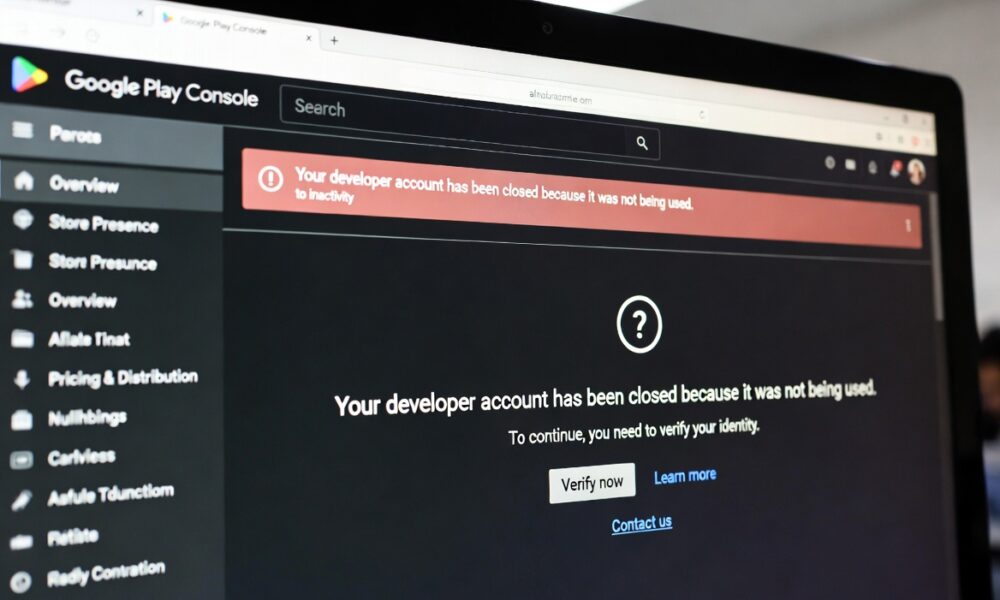
Launching an Android app is an exciting, but sometimes unexpected hurdles appear. One common challenge developers face is when their Google Play Developer account gets closed due to inactivity. If this has happened to you, don’t panic — you can bounce back quickly. In this post, I’ll walk through what happens, why it happens, and how you can recover.
Why Was My Account Closed?
Google Play sometimes closes developer accounts if they are inactive for a long time. In my case, I hadn’t logged in or published anything for months, and suddenly I received the notification that my account was closed. At first, I panicked — but then I realized there’s a simple way forward.
Step-by-Step Recovery Process for a Suspended Google Play Developer Account
Suspensions happen due to policy violations, but recovery is possible with the right approach. This step-by-step recovery process is updated for 2025.
Understanding Why Accounts Get Suspended
Common reasons: Multiple violations of Developer Program Policies, associated terminated accounts, or app removals. In 2025, stricter rules on spam and user data apply.
Step 1: Review the Suspension Email
Google sends details on the violation. Log into your console (if accessible) and check “Policy Status.”
Step 2: Fix the Issues
Update your app to comply—e.g., remove offending content, fix permissions, or address prior violations.
Step 3: Submit an Appeal
From the console, select the app and click “Appeal” on the status page. Provide evidence of fixes and explain preventive measures.
Appeals can take weeks; track via email.
Step 4: If Denied, Escalate or Create New Account (With Caution)
For terminations, creating a new account requires a different identity, but associated accounts risk bans. Best practice: Resolve root causes first.
Tip: Join communities like Reddit’s r/androiddev for advice.
Preventing Future Suspensions
Stay updated via Google Play Developer Policy Center. Use self-declarations for news apps and adopt Billing Library v7+.
Common Mistakes to Avoid When Creating Your Account
Don’t use fake details—Google’s verification is strict, and violations can lead to suspension. Also, ensure your payment method is valid to avoid delays.
Internal link: Check our cluster on avoiding app publishing pitfalls.
Managing Your Google Play Developer Account Effectively
Once set up, managing your Google Play Developer Account is key to long-term success. The Play Console offers tools for app submission, updates, and performance tracking.
Uploading Your First App
Prepare your app bundle (AAB format required in 2025), icons, and descriptions. Target Android 15 (API 35) or higher for new submissions.
Steps:
- Create a new app in the console.
- Upload APK/AAB and fill store listing.
- Set pricing and distribution.
- Submit for review—expect 1-7 days.
For detailed publishing, refer to Google’s launch checklist.
Monitoring Performance
Use metrics like DAU/MAU, which saw updates in April 2025 for better accuracy. Track installs, ratings, and revenue.
Bold key insight: Focus on user retention, as apps with high engagement rank better in searches.
Handling Updates and Policies
Regular updates are mandatory apps must target recent APIs by August 31, 2025. Comply with policies on news apps, media permissions, and more.
If you are Very beginner, here is a video I recommend you to visit from BenTech Youtube Channel help you to Create & Verify a Google Play Developer Account in 2025.
Conclusion
Getting your Google Play Developer account closed can feel discouraging, but it’s not the end of your journey. By creating a new account, preparing your app bundle, and ensuring compliance with Play Store policies, you can republish your app and continue reaching Android users worldwide.
I hope my experience helps you recover quickly and confidently. Remember — setbacks are temporary, but persistence always pays off.