
 Himadri
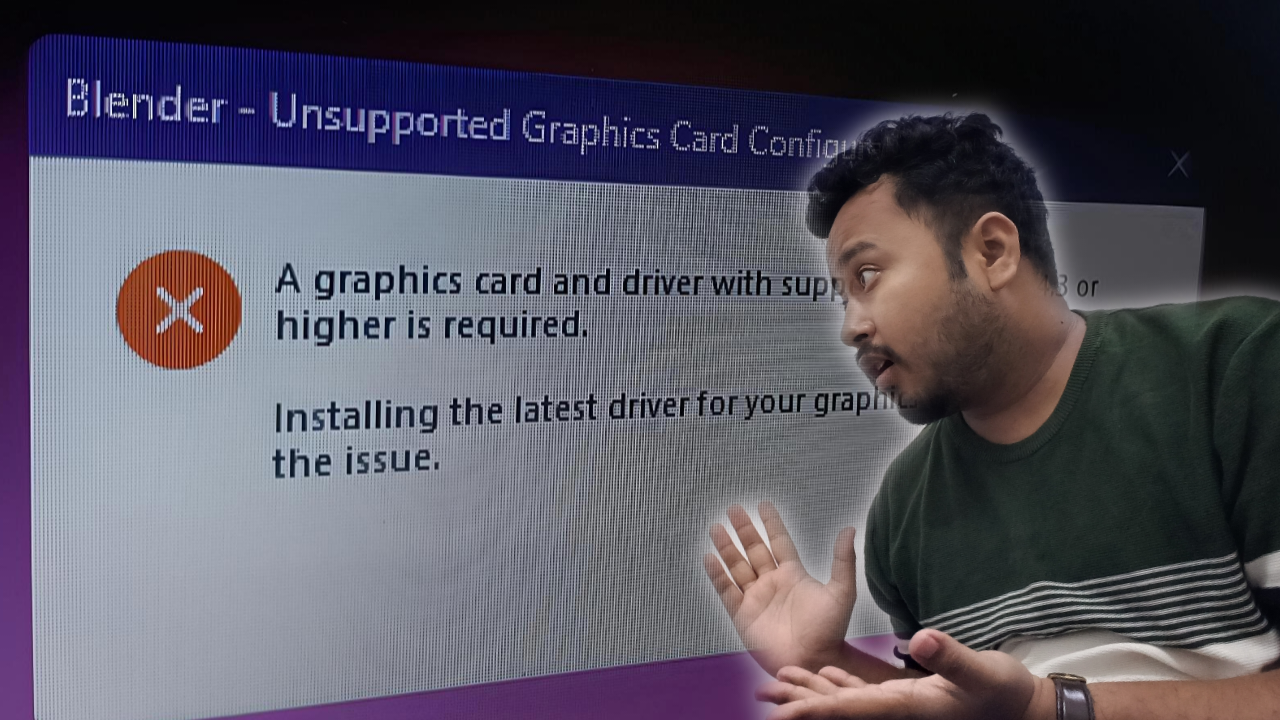
Encountering the Blender Unsupported Graphics Card Configuration popup right when you launch Blender is one of the most frustrating roadblocks in 3D creation—especially when you are working on an older laptop, an office notebook, or a machine powered by integrated Intel HD Graphics. Instead of opening your default 3D workspace, Windows interrupts startup with a stark red error icon stating: “A graphics card and driver with support for OpenGL 4.3 or higher is required. Installing the latest driver for your graphics card might resolve the issue.”
Whether your display driver is simply outdated, Windows Update replaced your manufacturer driver with a generic fallback driver, or your laptop’s integrated GPU physically tops out below OpenGL 4.3, you do not have to give up on 3D modeling. In this complete 2026 troubleshooting guide, you will learn exactly why the Blender Unsupported Graphics Card Configuration error happens and how to solve it permanently using official driver updates, Windows environment variable overrides, graphics backend switches, or by installing a rock-solid Long Term Support (LTS) release built specifically for older hardware.
Why Does the Blender Unsupported Graphics Card Configuration Error Happen?
To fix the Blender Unsupported Graphics Card Configuration error properly, it helps to understand what Blender checks during the first half-second after you double-click its desktop shortcut. Blender is not just a lightweight text editor; its entire user interface, 3D viewport, shading preview, and real-time Eevee rendering engine are drawn directly through modern graphics Application Programming Interfaces (APIs)—specifically OpenGL and Vulkan.
Starting with Blender 4.0 and continuing through Blender 4.2 LTS, 4.5 LTS, 5.0, and 5.2 LTS, the Blender Foundation officially raised the minimum graphics floor from OpenGL 3.3 to OpenGL 4.3. In addition to core OpenGL 4.3 compatibility, modern Blender releases explicitly verify that your graphics driver supports mandatory shader extensions such as GL_ARB_shader_draw_parameters and GL_ARB_clip_control.
When Blender launches, it queries your Windows display driver for its supported OpenGL version and extension list. If any of the following four scenarios occur on your computer, Blender refuses to load the main window and triggers the Blender Unsupported Graphics Card Configuration warning:
- Generic Windows Display Driver: After a fresh Windows 10 or Windows 11 installation—or following a major Windows Update—Windows sometimes defaults to the Microsoft Basic Display Adapter. This fallback driver only supports OpenGL 1.1, which immediately fails Blender’s hardware check.
- Outdated OEM or Legacy Drivers: Many laptop manufacturers (such as HP, Dell, Lenovo, Acer, and Asus) pre-install customized display drivers that are several years old. Even if your graphics chip supports OpenGL 4.3 or 4.5 in hardware, an outdated driver may report a lower capability or lack the required OpenGL extensions.
- Hardware Architecture Limits (Intel HD Graphics & Legacy GPUs): Budget processors like the Intel Pentium Gold series pair with integrated graphics such as Intel(R) HD Graphics 610, Intel HD 4000, or early Intel Broadwell/Skylake chips. While some of these chips support basic OpenGL 4.3 or 4.4 calls in theory, Intel moved them to legacy driver maintenance years ago, leaving them without the modern shader extensions required by Blender 4.x and 5.x.
- Hybrid Graphics Routing on Laptops: Laptops equipped with both an integrated Intel GPU (for battery saving) and a dedicated NVIDIA or AMD GPU (for heavy workloads) sometimes force Blender onto the weaker integrated chip by default, causing a false unsupported graphics error.
Understanding Blender 2026 System Requirements & OpenGL 4.3
Before attempting driver hacks or workarounds, compare your computer’s specifications against Blender’s official hardware baselines. Many users assume their CPU or RAM is the culprit when the bottleneck is strictly the GPU’s OpenGL version.
For current releases like Blender 5.2 LTS, the official minimum requirements on Windows are a 64-bit quad-core processor with SSE4.2 support, 8 GB of system RAM, Windows 8.1 or Windows 11 (64-bit), and a graphics card with at least 2 GB of VRAM supporting OpenGL 4.3 (with optional Vulkan 1.3 support). For professional architectural visualization, dense sculpting, and smooth Cycles rendering, Blender recommends an 8-core CPU, 32 GB of RAM, and a dedicated GPU with 8 GB of VRAM.
By contrast, Blender 3.6 LTS—the final release in the Blender 3.x branch—only requires OpenGL 3.3 and supports older Intel Broadwell and Kaby Lake integrated graphics natively. Understanding this dividing line between OpenGL 3.3 (Blender 3.6 LTS) and OpenGL 4.3 (Blender 4.0+) is the single most important key to resolving the Blender Unsupported Graphics Card Configuration error without wasting hours on trial and error.
How to Check Your Exact Graphics Card & OpenGL Version on Windows
Never guess which graphics chip is inside your laptop or desktop. Checking your exact display adapter in Windows takes less than thirty seconds and tells you immediately which fix will work best for your machine.
- Press Win + X on your keyboard (or right-click the Windows Start button on your taskbar) and select Device Manager from the quick-link menu.
- In the Device Manager window, scroll down and click the small arrow next to Display adapters to expand the category.
- Read the exact name listed underneath Display adapters. You will typically see one of the following:
- NVIDIA GeForce RTX / GTX / Quadro (e.g., GTX 1650, RTX 3060)
- AMD Radeon RX / Vega / Pro (e.g., Radeon RX 6600, Radeon Vega 8)
- Intel(R) Arc / Iris Xe / UHD Graphics / HD Graphics (e.g., Intel(R) HD Graphics 610)
- Microsoft Basic Display Adapter (indicates a missing graphics driver)
- Double-click your graphics adapter name, switch to the Driver tab, and note the Driver Date and Driver Version. If the driver date is several years old, an update is overdue.
If you want to inspect the exact OpenGL version and extensions your driver currently exposes to Windows, you can also download a free diagnostic utility like OpenGL Extensions Viewer (by Realtech VR) or GPU-Z. Running a quick scan will confirm whether your active driver reports OpenGL 4.3+ or caps out at OpenGL 3.3 or 4.0.
Method 1: Update Your Graphics Card Drivers (NVIDIA, AMD, Intel)
If you own a dedicated NVIDIA or AMD graphics card—or a modern Intel Iris Xe / Intel Arc laptop—the Blender Unsupported Graphics Card Configuration error is almost always caused by an outdated or corrupted display driver. Do not rely on Device Manager’s built-in “Search automatically for drivers” button, because Windows frequently reports that old drivers are already up to date.
Updating Intel Integrated Graphics Drivers
For laptops running Intel Core, Intel Pentium Gold, or Intel Celeron processors, download the official Intel Driver & Support Assistant (IDSA) directly from Intel’s website. Run the installer, allow the background utility to scan your system in your web browser, and install any available Intel Graphics DCH drivers.
Keep in mind that if your laptop manufacturer locked your display driver to an OEM version, the Intel installer may show a warning. In that case, visit your laptop brand’s official support page (HP, Dell, Lenovo, Asus, or Acer), enter your laptop’s serial number, and install the latest VGA / Display driver listed for Windows 10 or Windows 11.
Updating NVIDIA GeForce or Studio Drivers
If you have an NVIDIA GPU (GeForce 900 series or newer), visit the official NVIDIA Driver Downloads portal, select your exact GPU model and Windows version, and download the latest NVIDIA Studio Driver (recommended for 3D artists using Blender) or Game Ready Driver. During installation, select Custom (Advanced) and check the box labeled Perform a clean installation to wipe out corrupted OpenGL registry entries before rebooting.
Updating AMD Radeon Drivers
For AMD Radeon discrete graphics cards or Ryzen APUs with integrated Radeon graphics, download the latest AMD Software: Adrenalin Edition auto-detect installer from AMD’s official support site. Install the recommended WHQL driver package, restart your PC, and test launching Blender again.
Method 2: Fix Dual-GPU Laptop Switching Issues (Integrated vs. Dedicated)
If you expanded Display adapters in Device Manager and saw two graphics cards listed—for example, Intel(R) UHD Graphics alongside an NVIDIA GeForce RTX 3050—Windows may be assigning Blender to the power-saving Intel chip instead of your dedicated GPU. When Windows routes Blender through an older integrated GPU on a dual-graphics laptop, the Blender Unsupported Graphics Card Configuration dialog can pop up even though your laptop has a powerful dedicated card sitting idle.
- Press Win + I to open Windows Settings, then navigate to System > Display > Graphics.
- Click Browse (or Add desktop app), navigate to your Blender installation folder (usually
C:\Program Files\Blender Foundation\Blender 5.x\), and selectblender.exe. - Once Blender appears in the application list, click on it and select Options.
- Choose High performance (which displays your dedicated NVIDIA or AMD GPU name) and click Save.
- Restart Blender to confirm it initializes using your dedicated graphics processor.
Method 3: Bypass the OpenGL 4.3 Check Using an Environment Variable
What if your graphics driver is completely up to date, your laptop only has a single integrated GPU like Intel(R) HD Graphics 610, and you still want to force modern Blender to launch? Blender includes an internal developer override environment variable that tells the executable to skip its startup OpenGL version validation check.
Follow these exact steps to add the OpenGL bypass variable on Windows 10 or Windows 11:
- Press Win + S on your keyboard to open Windows Search, type Environment Variables, and click Edit the system environment variables.
- In the System Properties dialog window that appears, click the Environment Variables… button near the bottom right corner.
- Look at the top section labeled User variables for [Your Username] and click the New… button.
- In the Variable name field, type the following string in all capital letters with underscores:
BLENDER_IGNORE_GL_UNSUPPORTED - In the Variable value field, enter:
1 - Click OK to save the new variable, click OK on the Environment Variables window, and click OK again to close System Properties.
- Close any open Blender windows and relaunch Blender.
Crucial Caveat About Crashes and Visual Glitches: Adding BLENDER_IGNORE_GL_UNSUPPORTED=1 bypasses the gatekeeper popup, allowing Blender to open. However, if your integrated GPU genuinely lacks the hardware shader pipelines required by Blender 4.0 or 5.x (which is very common on Intel Pentium Gold laptops with Intel HD Graphics 610), Blender may immediately crash to the desktop, display missing wireframe lines, or render corrupted black textures in the 3D viewport. If you experience crashes or severe visual artifacts after setting this variable, delete the variable right away and use Method 4 below.
Experimental Alternative: Testing the Vulkan Backend in Blender 5.x
If Blender opens with the environment variable enabled and remains stable enough for you to reach the top menu bar, you can test switching Blender’s internal display backend from OpenGL to Vulkan. Open Edit > Preferences > System, locate the Display section, change Backend from OpenGL to Vulkan, and restart Blender. Keep in mind that older Intel HD 600-series drivers have incomplete Vulkan 1.3 support on Windows, so if Blender refuses to start after switching to Vulkan, uninstall it and move straight to Blender 3.6 LTS.
Method 4: Install Blender 3.6.13 LTS (Best Permanent Fix for Intel HD Graphics)
If you are running Blender on an Intel Pentium Gold laptop, an older Intel Core i3/i5 notebook, or a desktop with legacy integrated graphics like Intel(R) HD Graphics 610, the cleanest and most reliable solution is installing Blender 3.6.13 LTS. Rather than forcing a modern version of Blender onto hardware it was never designed to support, Blender 3.6 LTS runs natively on OpenGL 3.3 without workarounds, environment variables, or viewport glitches.
Even though Blender 3.6 LTS is an earlier Long Term Support release, it remains a powerhouse 3D creation suite. It includes full Geometry Nodes with Simulation Nodes, the modern Eevee real-time renderer, Cycles CPU/GPU rendering, sculpting, rigging, grease pencil 2D animation, and video editing—making it more than capable for learning 3D modeling, creating game assets, and designing product renders.
- Clean Up Previous Versions and Overrides: Uninstall Blender 4.x or 5.x via Windows Settings > Apps > Installed apps. Next, open Edit the system environment variables > Environment Variables, select
BLENDER_IGNORE_GL_UNSUPPORTEDunder User variables, and click Delete so your system stays clean. - Visit the Official Blender 3.6 Release Archive: Open your web browser and go to the official Blender Foundation archive at https://download.blender.org/release/Blender3.6/.
- Choose 3.6.13 Over 3.6.0: In the directory listing, you will see point releases ranging from
3.6.0up to3.6.13. Always download 3.6.13—it shares the exact same OpenGL 3.3 hardware requirements as 3.6.0 while incorporating over a year of official stability patches, memory leak fixes, and Intel integrated graphics crash resolutions. - Download the Windows Installer (.msi): Click on
blender-3.6.13-windows-x64.msito download the standard 64-bit Windows installer (or chooseblender-3.6.13-windows-x64.zipif you prefer a portable folder that runs without installation). - Run the Setup Wizard: Double-click the downloaded
.msifile, complete the installation wizard, and launch Blender 3.6.13 from your Start menu. It will open directly into the 3D viewport with zero OpenGL errors.
Troubleshooting Installer Warnings: Windows SmartScreen, .MSI vs. .MSIX, and .SHA256
Navigating Blender’s official archive directory at download.blender.org can feel confusing if you are used to clicking a single “Download” button on the main homepage. Inside the Blender 3.6.13 folder, you will see multiple file formats—such as .msi, .msix, .zip, and .sha256—and Windows may also trigger a security alert when you launch the setup file. Here is how to pick the exact right file and get through installation without any roadblocks:
How to Safely Bypass Windows SmartScreen on Older Installers
After downloading blender-3.6.13-windows-x64.msi, double-clicking the installer often triggers a blue Windows Defender SmartScreen popup reading “Windows protected your PC.” This alert appears simply because older Long Term Support archive builds receive fewer daily downloads than the newest flagship release—not because the file contains malware.
As long as you downloaded the file directly from Blender’s official server (download.blender.org), click the underlined More info link right below the warning message, verify the publisher details, and click Run anyway to start the Blender 3.6.13 Setup Wizard normally.
Why You Should Pick .MSI Instead of .MSIX
In the Windows download list, you will notice both .msi and .msix installers. While .msix is Microsoft’s modern sandboxed app package format built for Microsoft Store distribution, running a standalone .msix file downloaded manually from a web browser frequently triggers a certificate error on Windows 11 (“Ask the app developer for a new app package”).
To avoid certificate blocks and sandbox restrictions on third-party add-ons, always choose the traditional .msi Windows installer (blender-3.6.13-windows-x64.msi) for a clean, standard installation.
What Is the .SHA256 File?
Alongside the installers, you will spot small files ending in .sha256 (such as blender-3.6.13.sha256 or blender-3.6.0.sha256). These are plain-text checksum files containing cryptographic verification strings used by advanced users to confirm that an installer was not corrupted during download. You do not need to download or open .sha256 files to install or run Blender.
How to Optimize Blender Settings for Intel Pentium Gold & Low-End Laptops
Once you have fixed the Blender Unsupported Graphics Card Configuration error and launched Blender 3.6.13 LTS on your Intel HD Graphics laptop, tweaking a few internal preferences will dramatically improve viewport responsiveness and prevent system slowdowns:
- Reduce Undo Steps to Save RAM: Go to Edit > Preferences > System, expand Memory & Limits, and lower Undo Steps from the default 32 (or 64) down to
16or24. Every undo step stores a snapshot of your mesh geometry in system memory, which fills up quickly on 4 GB or 8 GB laptops. - Use Solid and Material Preview Shading Modes: Keep your 3D viewport in Solid mode while modeling and sculpting, and use Material Preview (Eevee) for lighting checks. Avoid switching the live viewport to Rendered (Cycles) mode on an Intel Pentium Gold CPU unless you are doing a final test render.
- Lower Viewport Anti-Aliasing: Under Edit > Preferences > Viewport > Quality, set Viewport Anti-Aliasing to No Anti-Aliasing or Single Pass to take immediate pressure off your integrated Intel HD 610 GPU.
- Enable Simplify for Heavy Scenes: In the right-hand Render Properties tab, check the Simplify box and cap Max Subdivision in the viewport to
1or2so high-poly modifiers never freeze your screen.
Quick Comparison: Which Fix Should You Choose?
| Troubleshooting Method | Best Hardware Scenario | Stability on Intel HD 610 | Setup Time |
|---|---|---|---|
| Official GPU Driver Update | Modern NVIDIA, AMD, or Intel Iris Xe GPUs running outdated drivers | High (if hardware supports OpenGL 4.3+) | 5–10 mins |
| Windows High-Performance GPU Assignment | Dual-GPU gaming/creator laptops defaulting to integrated graphics | High (routes Blender to dedicated GPU) | 2 mins |
Environment Variable Override (BLENDER_IGNORE_GL_UNSUPPORTED) | Borderline GPUs missing minor driver flags | Low (frequent crashes & viewport artifacts) | 2 mins |
| Blender 3.6.13 LTS Installation | Intel Pentium Gold, Celeron, and legacy Intel HD Graphics laptops | Very High (native OpenGL 3.3 architecture) | 5 mins |
Frequently Asked Questions (FAQ)
Can Intel HD Graphics 610 run Blender without crashing?
Yes. While Intel(R) HD Graphics 610 on an Intel Pentium Gold processor cannot reliably run Blender 4.0 or Blender 5.x due to strict OpenGL 4.3 shader requirements, it runs Blender 3.6.13 LTS natively on OpenGL 3.3 without startup errors, crashes, or visual glitches.
Why did Blender crash after I added BLENDER_IGNORE_GL_UNSUPPORTED=1?
The BLENDER_IGNORE_GL_UNSUPPORTED environment variable only disables Blender’s startup warning popup; it cannot add missing OpenGL 4.3 hardware features to an older graphics chip. When Blender 4.x or 5.x attempts to execute unsupported OpenGL 4.3 shader calls on legacy Intel graphics, the Windows display driver resets and Blender crashes. Deleting the variable and installing Blender 3.6.13 LTS solves this permanently.
Is Blender 3.6.13 LTS still free and safe to use in 2026?
Yes. Every version of Blender is 100% free and open-source under the GNU General Public License (GPL), and all historical LTS builds remain hosted permanently on the official Blender Foundation server at download.blender.org.
Should I choose Blender 3.6.0 or Blender 3.6.13 from the archive?
Always choose Blender 3.6.13 (blender-3.6.13-windows-x64.msi). Both versions share identical system requirements, but 3.6.13 includes 13 rounds of official stability updates and bug fixes released throughout the 3.6 Long Term Support lifecycle.
Resolving the Blender Unsupported Graphics Card Configuration error ultimately comes down to aligning your software version with your GPU’s real OpenGL capabilities. Whether you unlock OpenGL 4.3 through a clean manufacturer driver update or switch to the rock-solid Blender 3.6.13 LTS release for integrated Intel graphics, you can eliminate startup errors and get back to creating 3D models smoothly. For more Windows troubleshooting guides, PC optimization tips, and software tutorials, explore our latest articles on TechaDigi.
