
 Himadri
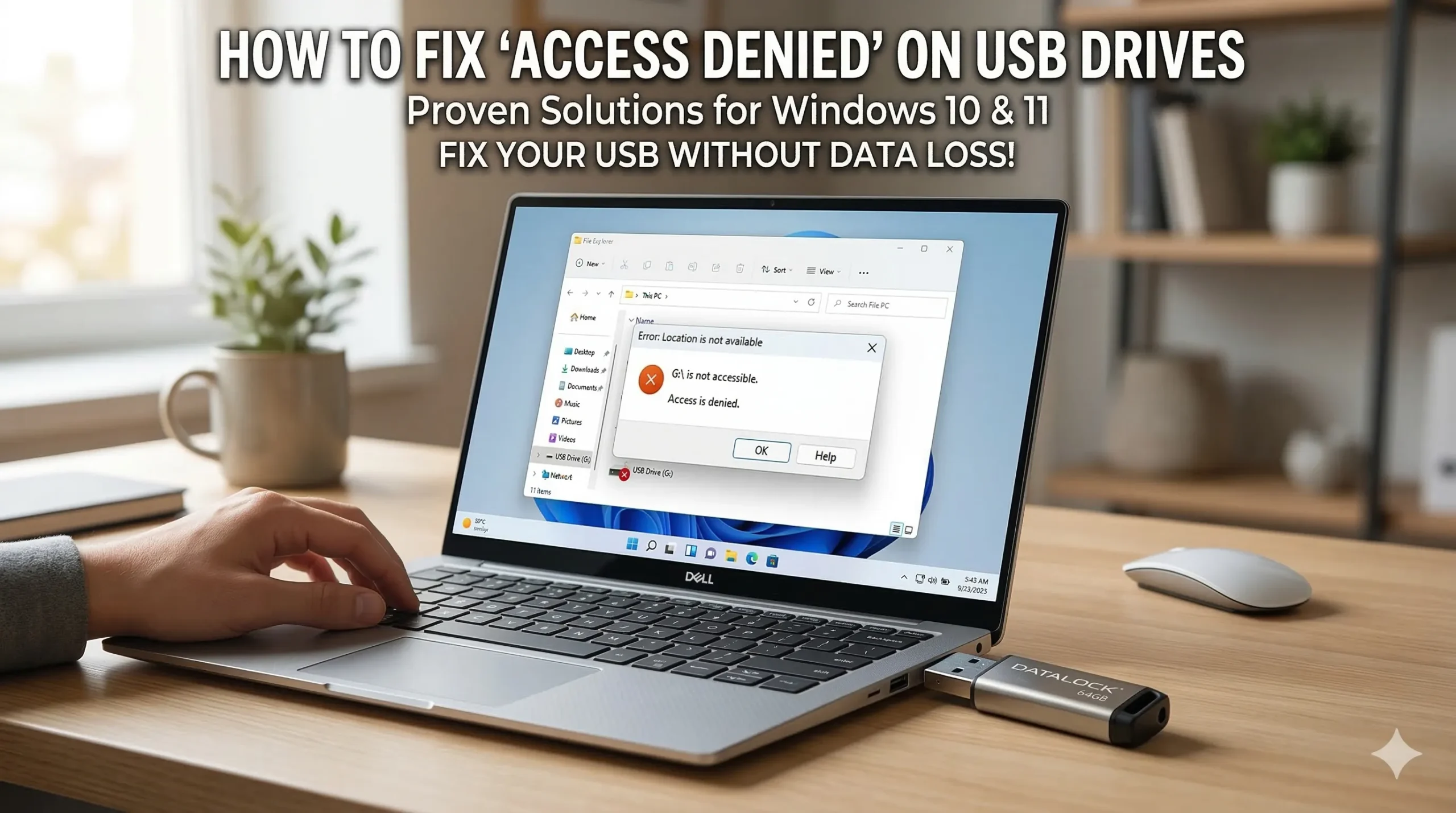
 We have all been there. You are sitting at your desk, maybe right before a big presentation or while trying to share precious family photos. You plug your trusty Pendrive (USB flash drive) into your computer, expecting the familiar folder window to pop up. Instead, Windows hits you with a cold, harsh message: “Location is not available. Access is denied.” or Pendrive Access Denied
Your stomach drops. You think about all the important documents, the irreplaceable photos, or the hours of work sitting on that tiny piece of plastic. Panic sets in. Have you lost everything? Is the drive dead? Do you need to spend a fortune on data recovery?
Take a deep breath. Your data is almost certainly still there, and your drive is probably fine. This error is incredibly common on both Windows 10 and Windows 11. In the vast majority of cases, it has nothing to do with a broken drive or deleted files. Instead, it is simply a digital misunderstanding between your Windows operating system and your USB drive. Windows is basically acting like a very strict security guard who doesn’t recognize your ID badge.
In this comprehensive, easy-to-understand guide, we are going to walk through exactly how to fix this issue. We will start with the easiest, 30-second fixes and move all the way through the professional-level troubleshooting steps used by IT experts. We will do this step-by-step, in plain English, with no technical degree required.
Grab a cup of coffee, plug your pendrive in, and let’s get your access back.
Part 1: The 30-Second Quick Checks (Do These First!)
Before we start diving into system settings, typing commands, or changing ownership, we need to make sure we aren’t overlooking a very simple hardware quirk. Sometimes, the biggest tech headaches have the simplest solutions. Try these three things before doing anything else.
1. Look for a Physical Write-Protect Switch
Many people don’t realize this, but some pendrives, SD card adapters, and external hard drives have a tiny physical switch on the side or bottom. This switch is a hardware lock designed to prevent data from being accidentally deleted or overwritten.
- Take your pendrive out and inspect it closely under a good light.
- If you see a tiny slider switch, check if it is pushed towards a “Lock” icon.
- If it is, simply slide it the other way to the “Unlock” position, plug it back into your PC, and see if it works.
2. The “Did You Turn It Off and On Again?” Approach
It is a cliché for a reason: restarting your computer fixes a shocking number of problems. Sometimes, the Windows background services that manage USB connections freeze up or get confused.
- Safely remove your USB drive (if you can), or just pull it out if Windows isn’t letting you do anything.
- Restart your computer completely. Do not just put it to sleep; use the “Restart” option in the Start menu.
- Once you are back on your desktop, plug the drive in again.
3. Try a Different USB Port or a Different Computer
Sometimes, the issue isn’t the pendrive at all; it is the USB port on your computer. USB ports can gather dust, get physically damaged, or have their internal connections wear out over time.
- If you plugged the drive into the front of your desktop computer, try plugging it directly into the back (these ports connect directly to the motherboard and are often more reliable).
- If you are on a laptop, try the port on the opposite side.
- The ultimate test: Plug the pendrive into a completely different computer. If it opens perfectly on your friend’s laptop but not yours, you instantly know the problem is with your computer’s settings, not the drive itself!
Part 2: Understanding Why This Happens
If the quick checks didn’t work, don’t worry. To defeat the enemy, we must understand it. Here is why Windows is throwing the “Access Denied” error at you. Understanding these will help you see why the fixes below actually work.
- You Don’t Have the Right “Permissions”: This is the number one cause. Every file and drive in Windows has an “Owner.” If this pendrive was set up by a different user account, or if it was formatted on an older PC, your current Windows account might not have the security clearance to look inside. It’s like having a key to the building, but not to the specific office room.
- Workplace or School Restrictions (Group Policy): If you are using a computer issued by your company, university, or school, the IT department might have locked it down. Many organizations block USB drives entirely to stop employees from taking confidential files home or bringing viruses into the network.
- File System Corruption: Your pendrive uses a “file system” (like a digital filing cabinet) to organize data. If you yank the drive out while a file is saving, or if the power goes out, the filing cabinet gets scrambled. Windows sees the mess and refuses to open it.
- Write Protection or Read-Only Flags: Sometimes, due to a glitch or malware, Windows gets an invisible signal that says, “Do not touch this drive, do not read it, do not write on it.”
Now that we know what we are up against, let’s start fixing it.
Part 3: The Step-by-Step Fixes
We have arranged these fixes in order of how likely they are to solve your problem. Start with Fix 1, and work your way down the list.
Fix 1: The “Take Ownership” Method (Solves ~70% of Cases)
If you are using your own personal computer and you get this error, this is almost certainly the fix you need. We are going to tell Windows that you are the rightful owner of this drive and that you demand full control over it.
Step-by-Step Instructions:
- Open File Explorer (the yellow folder icon on your taskbar).
- Look at the left sidebar and click on This PC so you can see all your connected drives.
- Find your pendrive. It might just say “USB Drive” or have the brand name (like SanDisk or Kingston).
- Right-click on the pendrive and select Properties at the very bottom of the menu.
- In the Properties window, look at the tabs across the top. Click on the Security tab. (Note: If you do not see a Security tab, your drive is likely formatted in FAT32, and this specific fix won’t work for you. Skip to Fix 4).
- Near the bottom of the Security tab, click the button that says Advanced. A new, slightly intimidating window will open. Don’t worry, we know exactly what to do here.
- Look right at the top of this new window. You will see a line that says “Owner: Unable to display current owner” or it might list a strange string of letters and numbers. Right next to that, click the blue link that says Change.
- A small “Select User or Group” box will appear. There is a blank text box near the bottom. Click inside that box and type the word: Everyone.
- Click the button next to it that says Check Names. The word “Everyone” should become underlined. Click OK.
- Now, back on the Advanced window, look right under the Owner name you just changed. You must check the little box that says Replace owner on subcontainers and objects. This tells Windows to apply your ownership to every single folder and file inside the pendrive.
- Click Apply at the bottom right. Windows might take a few seconds to process this.
- Now, click the Add button near the bottom.
- Click Select a principal at the top. Again, type Everyone, click Check Names, and click OK.
- You will see a list of “Basic permissions”. Check the box at the very top that says Full control.
- Click OK, then click Apply, and click OK to close all the windows.
Now, double-click your pendrive. Did it open? If yes, congratulations! You just did some serious IT work. If not, let’s keep going.
Fix 2: Bypassing Office/School Restrictions (Group Policy)
Are you using a computer that belongs to your employer? If so, the IT department likely used something called “Group Policy” to block external storage.
Disclaimer: If you are at work, bypassing IT security policies might be against company rules. Proceed with caution. (Note: This fix only works on Windows 10/11 Pro, Education, or Enterprise. Windows Home edition does not have the Group Policy Editor).
Step-by-Step Instructions:
- Press the Windows Key and the letter R at the same time on your keyboard. This opens the “Run” dialog box.
- Type
gpedit.mscinto the box and press Enter. This opens the Local Group Policy Editor. - The window is split into two sides. On the left side, you need to click through a specific path. It looks like a series of folders. Follow this exact path:
- Click Computer Configuration
- Expand Administrative Templates
- Expand System
- Scroll down and click on Removable Storage Access
- Now, look at the right side of the window. You will see a list of policies.
- Look for any policy that has the word “Deny” in it. For example, you might see Removable Disks: Deny read access or All Removable Storage classes: Deny all access.
- Double-click on these “Deny” policies one by one.
- A new window will pop up. On the left side, change the setting from “Enabled” to Not Configured or Disabled.
- Click Apply and then OK.
- Once you have disabled the denying policies, close the Group Policy Editor and Restart your computer.
Fix 3: Removing Write-Protection in the Windows Registry
The Windows Registry is the master brain of your operating system. Sometimes, a tiny setting in the brain gets flipped, telling Windows that all USB drives are locked. We are going to go in and flip it back.
Warning: The Registry is sensitive. Only change the exact things we tell you to change below. Do not delete random files here.
Step-by-Step Instructions:
- Press Windows Key + R to open the Run box.
- Type
regeditand press Enter. If a prompt asks if you want to allow this app to make changes, click Yes. - You will see a complicated list of folders on the left. We need to navigate down a specific path. Click the little arrows to expand the folders in this order:
- HKEY_LOCAL_MACHINE
- SYSTEM
- CurrentControlSet
- Control
- Now, scroll down the list under “Control” and look for a folder called StorageDevicePolicies.
- If you SEE the folder: Click on it. Look at the right side of the screen. You should see a file called WriteProtect. Double-click it. Change the “Value data” number from 1 to 0. Click OK.
- If you DO NOT SEE the folder: We have to make it. Right-click on the Control folder, go to New, and select Key. Name this new key exactly this:
StorageDevicePolicies(no spaces). - Click on your newly created folder. Now, right-click anywhere in the empty white space on the right side of the screen. Go to New and select DWORD (32-bit) Value.
- Name this new file exactly this:
WriteProtect. - Double-click WriteProtect, ensure the “Value data” is set to 0, and click OK.
- Close the Registry Editor and restart your computer.
Fix 4: Stripping the “Read-Only” Attribute using DiskPart
DiskPart is a powerful, text-based command tool built right into Windows. It can bypass the normal Windows interface and talk directly to your drives. If your drive is stuck in a “read-only” lockdown, DiskPart can force it to open up.
Step-by-Step Instructions:
- Click the Windows Start button and type
cmd. - You will see Command Prompt appear in the search results. Right-click it and choose Run as administrator. (This is crucial; it won’t work without admin rights).
- A black screen with white text will appear. Type
diskpartand press Enter. (Wait a second for the “DISKPART>” prompt to appear). - Type
list diskand press Enter. - You will see a list of all the storage drives connected to your PC. Look at the “Size” column to figure out which one is your pendrive. For example, if your pendrive is 32GB, look for the disk that is roughly 29GB or 30GB. Note the Disk number (e.g., Disk 1, Disk 2).
- Type
select disk X(but replace the X with your actual disk number. For example:select disk 1). Press Enter. The screen should say “Disk X is now the selected disk.” - Type exactly this:
attributes disk clear readonlyand press Enter. - It should say “Disk attributes cleared successfully.”
- Type
exitand press Enter to close the tool. Check your drive!
Fix 5: The Digital First-Aid Kit (CHKDSK)
If you have a bad habit of pulling your USB drive out without clicking “Safely Remove Hardware,” the file system gets messy and corrupted. The CHKDSK (Check Disk) tool acts like a digital librarian. It goes through the drive, finds the messy, corrupted data, and repairs it. The best part? It usually does this without deleting your files.
Step-by-Step Instructions:
- Open File Explorer and go to This PC.
- Look at your pendrive and note what Drive Letter it has (e.g., D:, E:, F:, or G:). Let’s pretend it is drive G: for this example.
- Open the Start menu, type
cmd, right-click Command Prompt, and select Run as administrator. - Type the following command carefully:
chkdsk G: /f /r(Crucial step: Replace the “G:” with whatever letter your drive actually uses! Keep the spaces exactly as shown). - Press Enter.
- Windows will now scan the drive. The
/ftells it to fix errors, and the/rtells it to locate bad physical sectors and recover readable information. - Let it run. Depending on the size of your drive and how messed up it is, this could take 2 minutes or 20 minutes. Do not close the window until it says it is completely finished.
Fix 6: Changing the Drive Letter (The Identity Crisis)
Sometimes, Windows gets confused. It might try to assign your pendrive the letter “D:”, but your DVD drive or a network folder is already using “D:”. Because they are fighting over the same letter, Windows just blocks access entirely. Giving the pendrive a new, unique letter fixes this instantly.
Step-by-Step Instructions:
- Right-click on the Windows Start button (the icon itself on the taskbar).
- A hidden menu will pop up. Click on Disk Management.
- You will see a list of blocks representing your drives. Find your pendrive in the list.
- Right-click on the block representing your pendrive and select Change Drive Letter and Paths.
- Click the Change button.
- A drop-down menu will appear with the alphabet. Pick a letter further down the alphabet that you know isn’t being used (like M, N, X, or Z).
- Click OK, and then click Yes on the warning that pops up.
- Open File Explorer and try to access the drive via its new letter.
Fix 7: Refreshing Your USB Drivers
Drivers are the translator software that allows Windows to talk to the physical USB port. If these translators get old or corrupted, communication breaks down. We need to fire the old translators and let Windows hire new ones.
Step-by-Step Instructions:
- Right-click the Start button and select Device Manager.
- Scroll down to the very bottom of the list and look for Universal Serial Bus controllers. Click the little arrow next to it to expand the list.
- You will see several items listed. Look for anything called USB Root Hub or Generic USB Hub.
- Right-click the first one and select Update driver. Choose “Search automatically for drivers.”
- If it says you already have the best drivers, try the more aggressive approach: Right-click it and choose Uninstall device. (Don’t worry, you aren’t deleting anything permanently).
- Repeat the uninstall process for all the “USB Root Hub” items. (Your mouse or keyboard might temporarily stop working during this—that is normal).
- Once they are uninstalled, Restart your computer.
- When Windows boots back up, it will realize the drivers are missing and automatically download and install brand new, clean versions.
Part 4: The Last Resort (Formatting and Data Recovery)
If you have tried every single step above and Windows still says “Access Denied,” you are dealing with a severely corrupted file system or physical damage. At this point, the only way to make the pendrive usable again is to Format it.
WARNING: Formatting will completely erase every single photo, document, and file on the drive. It wipes the slate clean.
Wait! Get Your Data Back First!
If you have important files on the drive, you must run data recovery software before you format it. Because the drive is physically plugged in, recovery software can often look past the Windows “Access Denied” block and pull the raw files out.
Top Free Recovery Tools:
- Recuva: Very user-friendly and great for simple file recovery.
- EaseUS Data Recovery Wizard Free: Allows you to recover up to 2GB for free. Very high success rate.
- TestDisk: A text-based, highly advanced tool for deep corruption (better for tech-savvy users).
Download one of these, point it at your locked USB drive, and save the recovered files to your computer’s main hard drive (not back onto the broken USB).
How to Format the Drive (Once Your Data is Safe)
- Open File Explorer and go to This PC.
- Right-click the stubborn pendrive and select Format.
- Under “File system”, choose NTFS (best if you only use Windows) or exFAT (best if you swap between Windows and Mac computers).
- Make sure Quick Format is checked.
- Click Start. In a few seconds, you will have a completely empty, fully functional pen drive again.
(Note: If Windows refuses to format the drive or says “Windows was unable to complete the format,” your pen drive has suffered irreversible physical hardware failure and needs to be thrown away).
Part 5: How to Never Deal With This Again
You’ve spent enough time troubleshooting for one day. Here is how to treat your pen drives so you never have to read this guide again.
- Always “Safely Remove Hardware”: Windows uses “write-caching.” This means it holds files in the computer’s memory and writes them to the USB in the background. If you yank the drive out before Windows is completely finished, you corrupt the file system. Always click the little USB icon in your taskbar near the clock and select “Eject” before pulling it out.
- Avoid Sketchy Computers: Public library computers, internet cafes, and university print shops are breeding grounds for malware. A virus from a public PC can easily change your drive’s permissions or hide your files. If you must use a public PC, consider emailing files to yourself instead.+1
- Invest in Good Brands: Cheap, off-brand USB drives bought in bulk are prone to controller failure and bad memory sectors. Spend the extra few dollars for reliable brands like SanDisk, Kingston, Samsung, or PNY.
- Keep Antivirus Running: Windows Defender (built into Windows 10 and 11) is fantastic. Keep it updated. It will block malicious scripts trying to lock your drive before they can execute.
We hope this extensive guide helped you understand your computer a little better and, most importantly, got your files back! Technology can be incredibly frustrating, but with patience and the right steps, you can fix almost anything.
Would you like me to summarize these fixes into a short, printable checklist for you to keep near your desk for the future?
Official Microsoft Documentation & Forums
- Microsoft Learn: DiskPart
attributes diskCommand Reference The official documentation for using the command-line tool to strip read-only attributes from storage drives. Read the documentation here - Microsoft Q&A: How to remove write protection on a USB device A detailed community thread verified by Microsoft MVPs outlining the exact steps to clear read-only errors. Read the thread here
Dedicated Data Recovery & IT Blogs
- EaseUS: Fix USB Access Denied Without Data Loss in Windows A comprehensive guide from a leading data recovery software company on changing ownership permissions and using CHKDSK. Read the guide here
- SFWare: USB Access Denied Error | 7 Simple Ways to Fix The Error Easily An IT blog detailing Registry Editor tweaks, Group Policy workarounds, and advanced security setting management. Read the guide here
Hardware Manufacturer Community Forums
- HP Support Community: Can’t access the USB or other external drives A real-world troubleshooting thread highlighting how manufacturer-specific security software (like HP Client Security) can sometimes cause the “Access Denied” error, and how to bypass it. Read the thread here
